
Before you start
- Adobe InDesign 2026, installed. DriveSync installs for 2026 only and will not touch any other version.
- The DriveSync ZIP — download it here if you haven’t already.
- The email address your licence was issued to. This is not necessarily your Google address.
- An internet connection. There is no offline mode: the licence is checked every time DriveSync runs. On a filtered network,
script.google.commust be reachable.
You do not need administrator rights, and there is nothing to configure. DriveSync contains no Google credentials and no settings to fill in.
macOS
- Unzip. Double-click the ZIP. You get a folder called
drivesynccontaining the installer, the panel and the documentation.Keep the folder together. Running the installer from inside the ZIP does not work. - Quit InDesign. If InDesign 2026 is running, quit it completely.The panel and the DriveSync menu only load when InDesign starts.
- Run the installer. Double-click
Install-Mac.command.macOS may refuse the first time, because the file came from the internet. Either right-click it and choose Open, then Open again in the warning; or go to System Settings Privacy & Security, scroll down and press Open Anyway. - Start InDesign 2026 and open Window Extensions DriveSync.
The installer prints what it is doing, and every line should say ok. It checks that InDesign 2026 is present and stops if it isn’t, validates the extension before copying anything, copies the panel into your own Library folder, removes the CEP debugging file, enables unsigned extensions for CEP 12 only, and installs the DriveSync menu next to Help.
Windows
- Unzip. Right-click the ZIP and choose Extract All. You get a folder called
drivesync.Extract it properly. Windows lets you browse inside a ZIP as though it were a folder, and running the installer from there fails in confusing ways. - Quit InDesign. If InDesign 2026 is running, close it completely.
- Run the installer. Double-click
Install-Windows.bat.SmartScreen may show a blue “Windows protected your PC” panel. Click More info, then Run anyway. This appears for any unsigned script downloaded from the internet. - Start InDesign 2026 and open Window Extensions DriveSync.
It performs the same steps as the macOS version, into %APPDATA%\Adobe\CEP\extensions. Administrator rights are not needed. If the DriveSync menu cannot be installed, the panel still works through the Window menu.
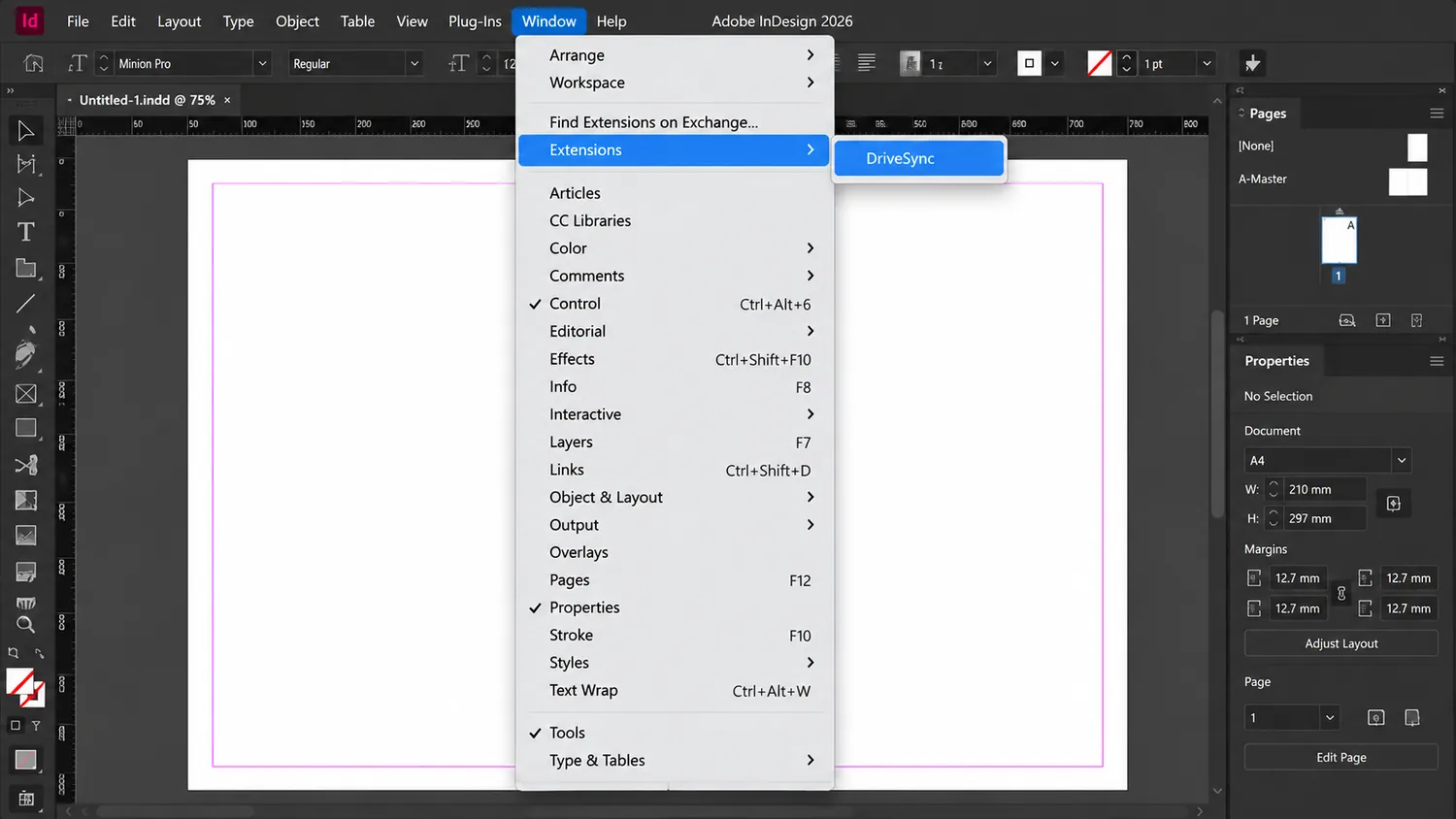
First run — the same on both platforms
- Activate your licence. DriveSync opens on an activation screen. Enter the email address your licence was issued to and press Activate.The licence key is optional; enter it only if you were given one. The activation is remembered, so you will not be asked again on this computer.
- Sign in to Google. On the Settings tab press Sign in. Your browser opens Google’s normal sign-in page; approve the request and return to InDesign.If your browser is signed in to more than one Google account, the file picker follows the browser’s default account. Sign out of the others first, or use the “Switch Google account” link DriveSync shows.
- Connect a document. Press Add Docs or Sheets and choose one or more files.DriveSync can use Google Docs, Google Sheets, and uploaded Word and Excel files (.docx, .doc, .xlsx, .xls).
- Sync. Give the connected file a frame label, then press Sync. Text and tables flow into your layout, and only the words change.
If something goes wrong
When you report a problem, open DriveSync About DriveSync… and quote the Installation ID. It identifies your computer exactly and saves a round of questions.
Moving to another computer
- On the old computer, open Settings Licence Deactivate this computer. That frees the seat.
- On the new computer, install as above and activate with the same licence email.
Deactivate before you wipe the old machine. Deleting DriveSync’s settings folder does not free the seat — it orphans it, and the next installation consumes another one. Only we can recover an orphaned seat. Reinstalling on the same computer does not use another seat, as long as you keep the settings folder when the uninstaller offers to delete it.
Uninstalling
Run Uninstall-Mac.command or Uninstall-Windows.bat. It removes the panel and the menu, then asks whether to delete your saved sign-in and settings. Keep them if you intend to reinstall on this computer; delete them only if you are retiring it — and deactivate the licence first.
Your InDesign documents are never touched, by installing or uninstalling.
Download this guide as a Word document · Download DriveSync · Support and FAQ